Your Reports module provides useful information about your transaction activity.
Navigating Reports
To view Reports, click Reports on the Workbench banner or click the Reports Tile on the Home page.

|
Number |
||
|---|---|---|
| 1 |
Workbench banner |
Displays buttons for your available Workbench modules. User and company menu buttons allow you to quickly switch between your companies, change your password, and sign out of Workbench. |
|
2 |
Reports menu |
Displays a list of your available reports. |
|
3 |
View pane |
Displays the currently selected report. |
Hiding the Sidebar
Click Hide Sidebarto hide the menu sidebar and expand the size of the view pane.
To show the sidebar while it is hidden, click the Show Sidebar arrow button.
Report Types
Different reports are available depending on the company role type (buyer or supplier) that you have selected in you company menu. For details on company role types, refer to Users, page 1.
The following reports are available for Suppliers:
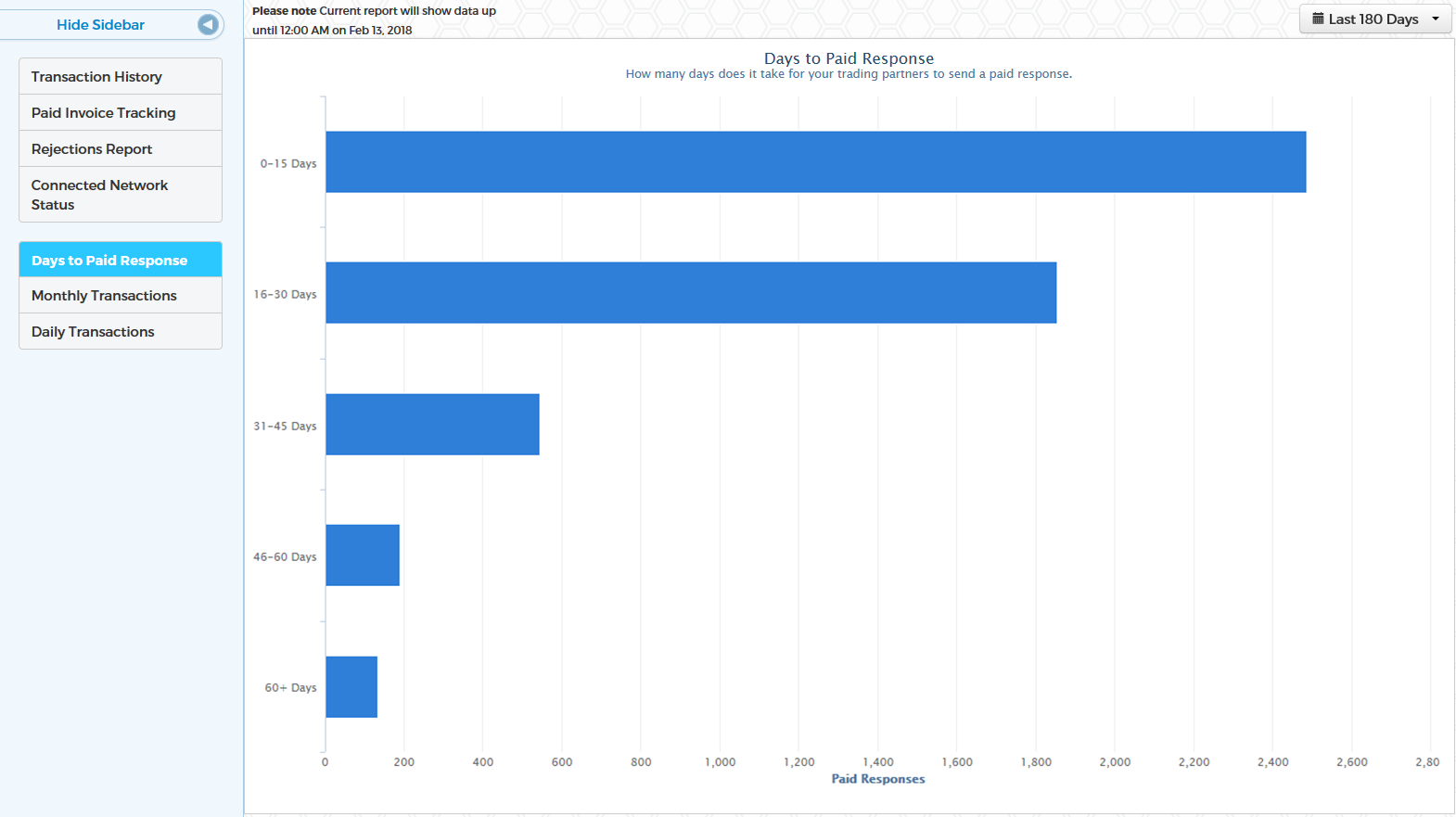
- Days to Paid Response: reports the number of days it takes to receive a paid response for each of your applicable documents. For details, refer to Generating a Days to Paid Response Report, page 1.
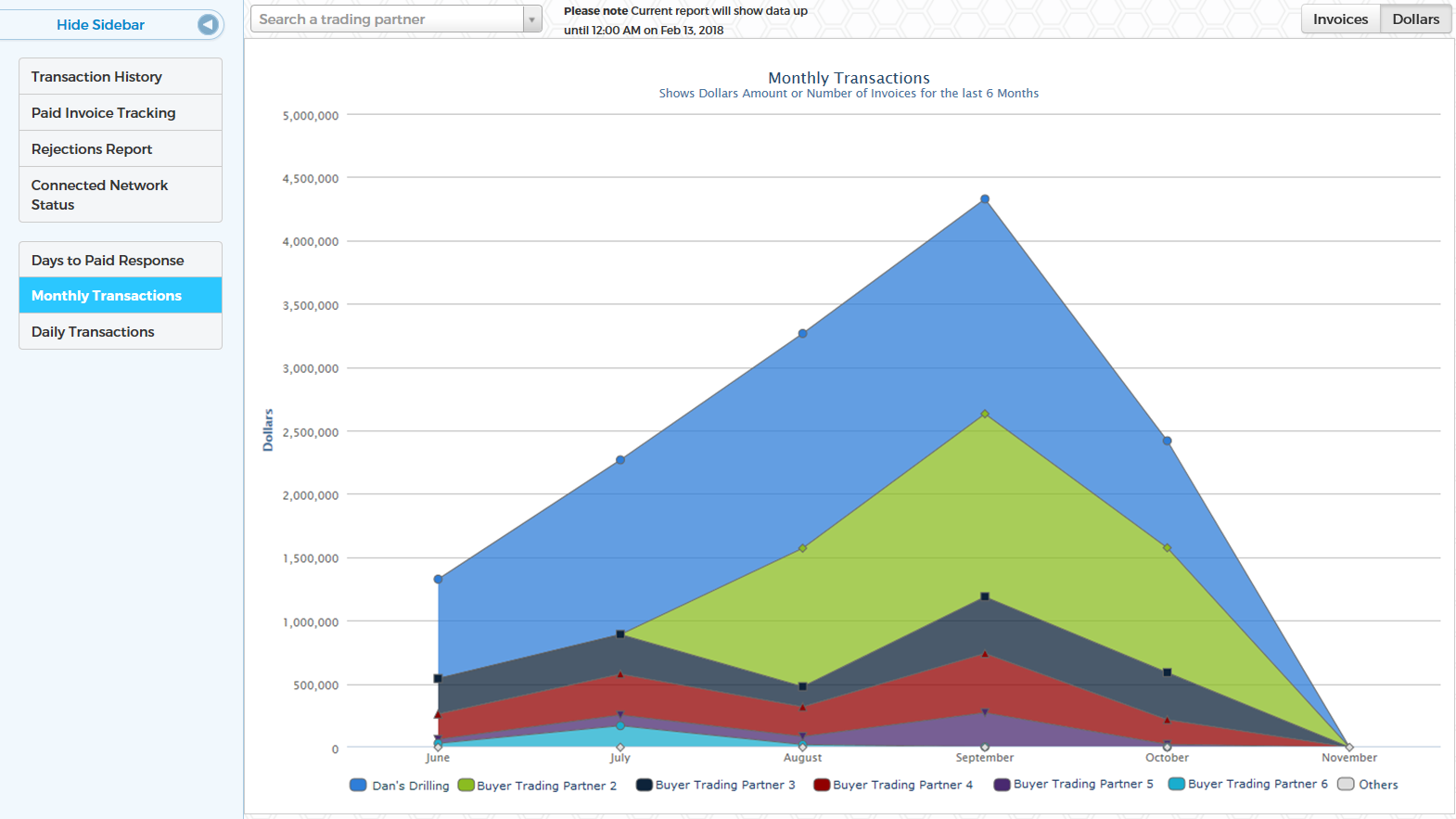
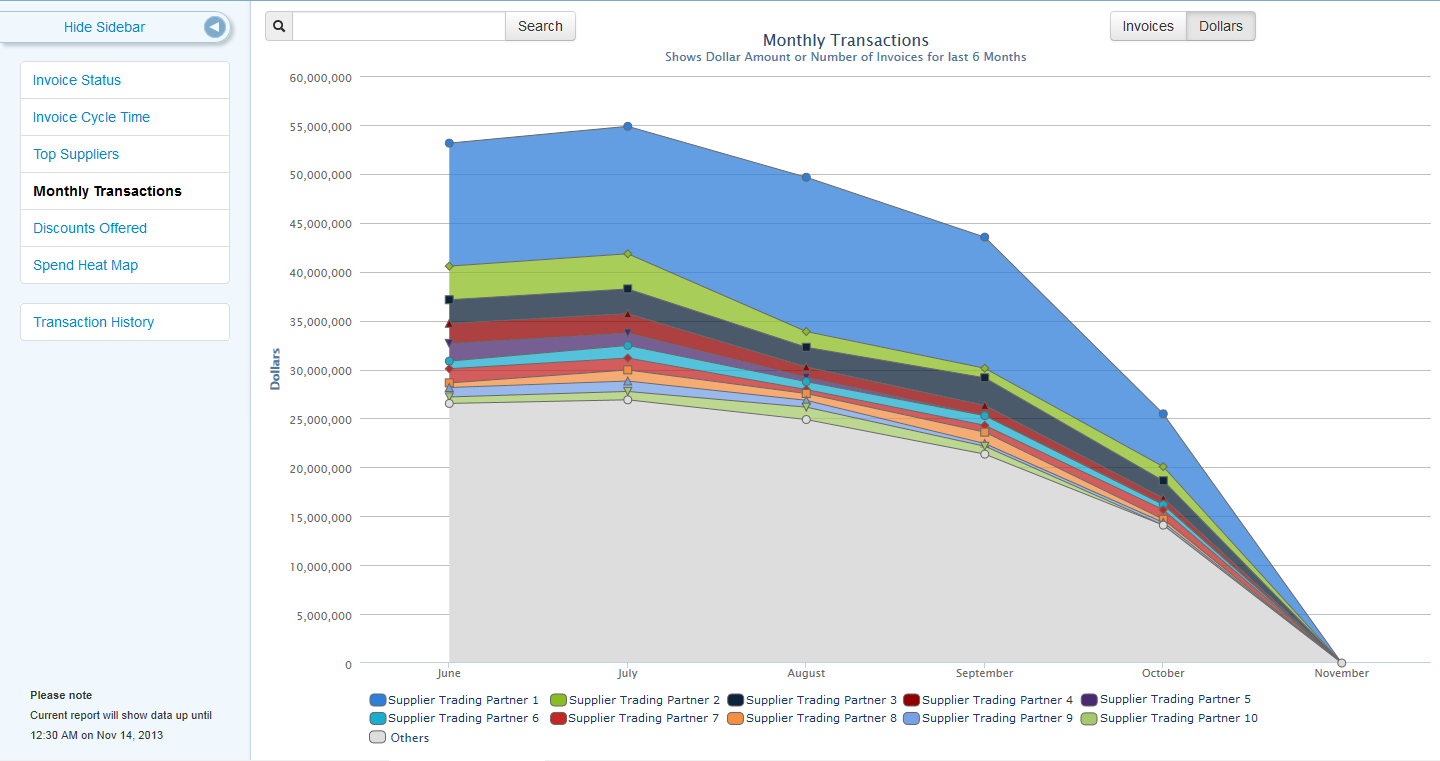
- Monthly Transactions: reports the monthly document transactions, per Buyer, over the last six (6) months. The data can be reported in document volume or dollar amount. For details, refer to Generating a Monthly Transactions Report, page 1.
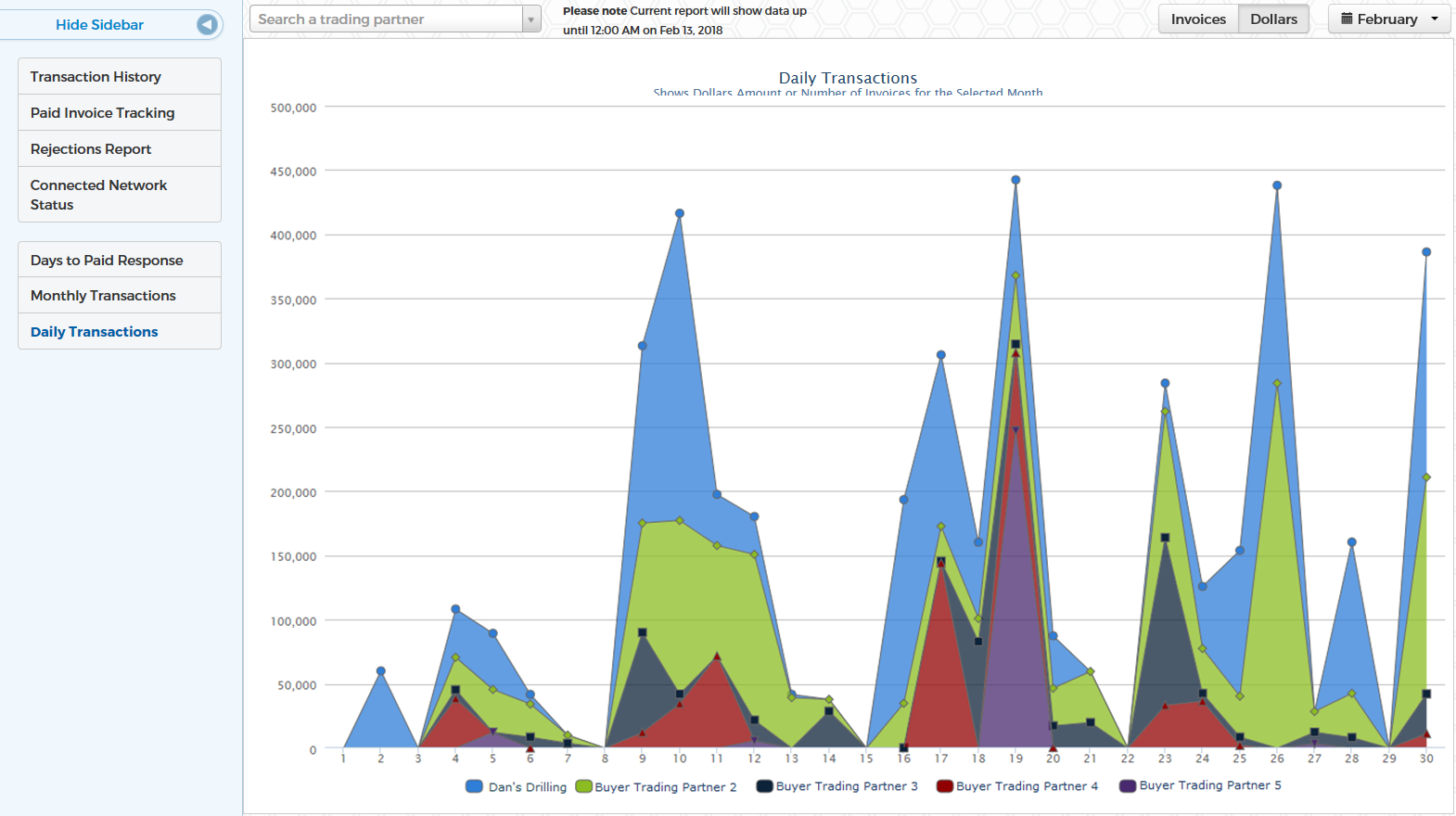
- Daily Transactions: reports the daily document transactions, per Buyer, for a selected month. The data can be reported in document volume or dollar amount. For details, refer to Generating a Daily Transaction History Report, page 1.
- Transaction History: offers various methods of finding specific documents or their subsets. In addition to defining the report’s date range, you can search for documents by their type and status, or search for a specific document by its number. For details on using Transaction History reports, refer to Transaction History Report, page 1.
The following reports are available for Buyers:
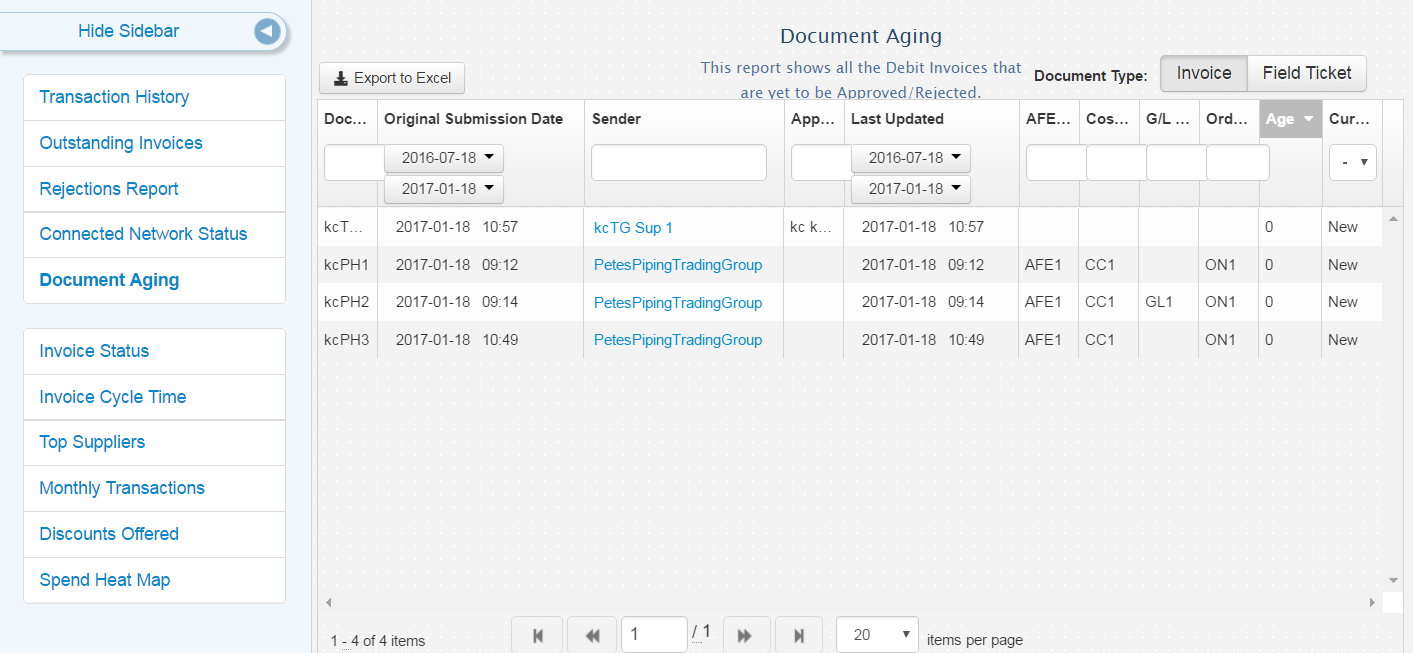
- Document Aging: reports the aging of Invoices or Field Tickets based on their original submission dates and their last update. It also lists all Debit Invoices that have not yet been Approved, Rejected or Paid. For details, refer to Generating a Document Aging Report, page 1.
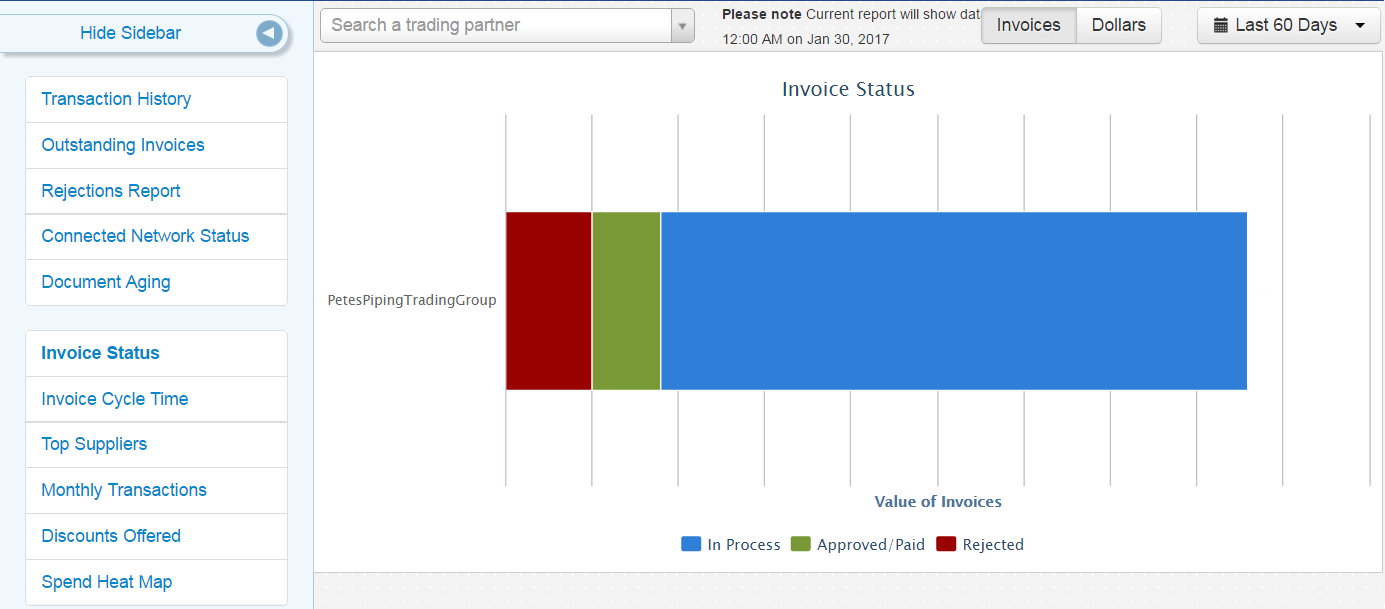
- Invoice Status: reports the number of Invoices or dollar amount per Supplier, by status, for a selected period. For details, refer to Generating an Invoice Status Report, page 1.
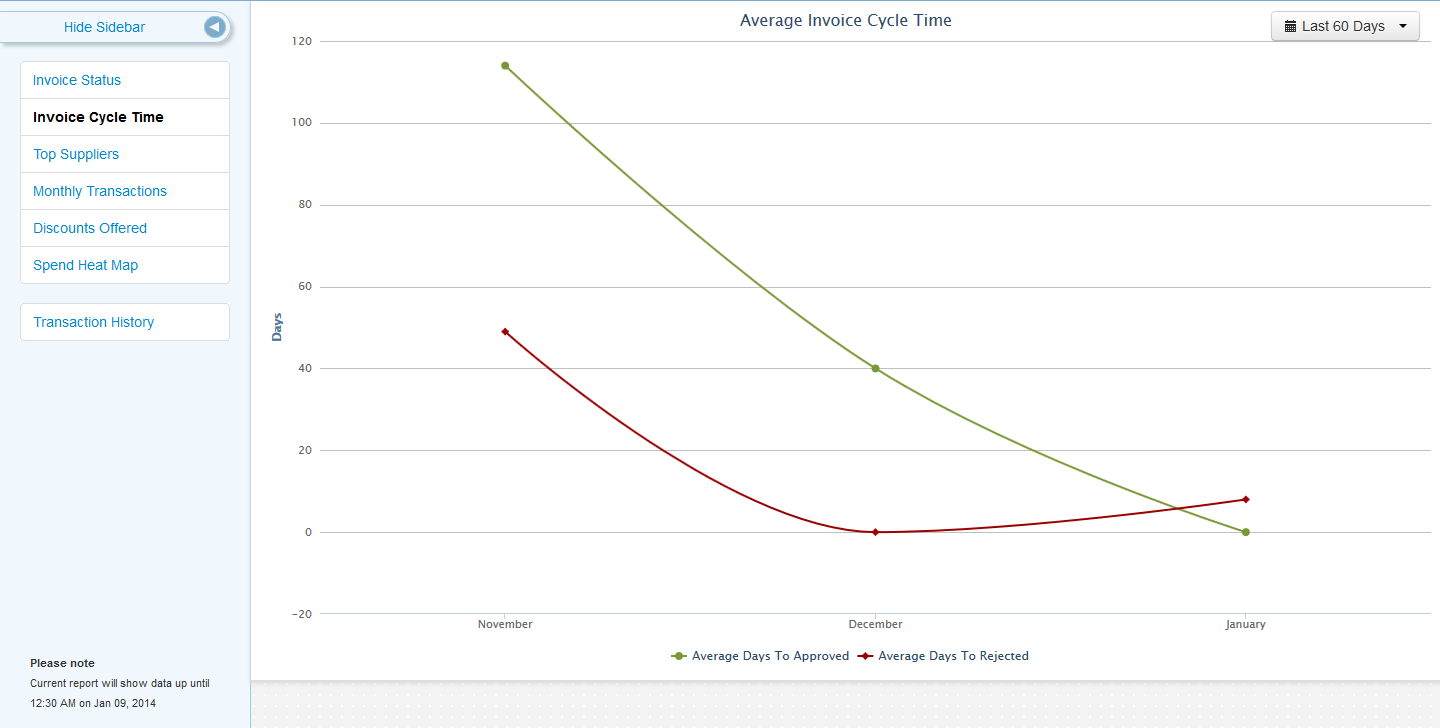
- Invoice Cycle Time: reports the average days to Approve or Reject a document, per month, for a selected period. For details, refer to Generating an Invoice Cycle Time Report, page 1.
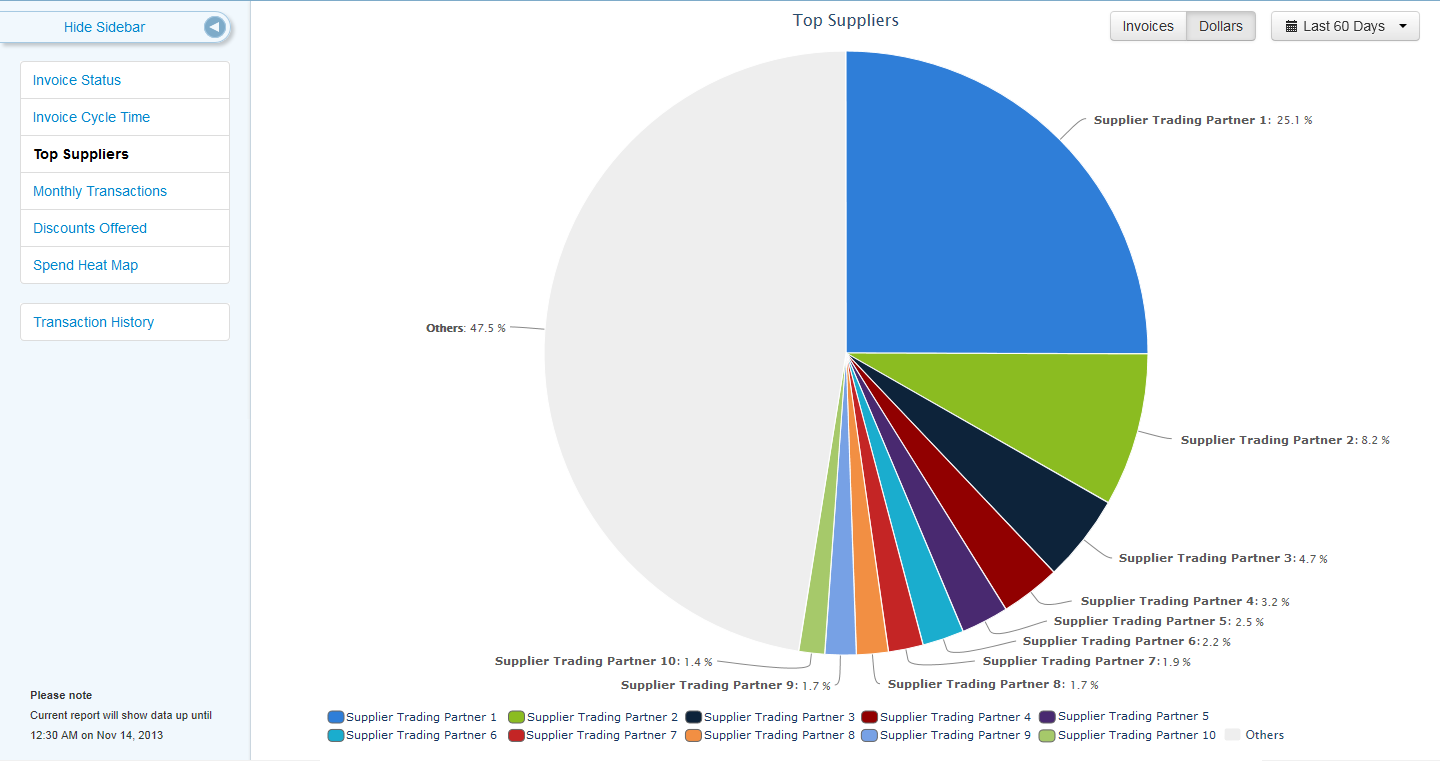
- Top Suppliers: reports the top Suppliers by number of documents or dollar amount, for a selected period. For details, refer to Generating a Top Supplier Report, page 1.
- Monthly Transactions: reports the monthly document transactions or dollar amount, per Supplier, over the last six (6) months. For details, refer to Generating a Monthly Transactions Report, page 1.
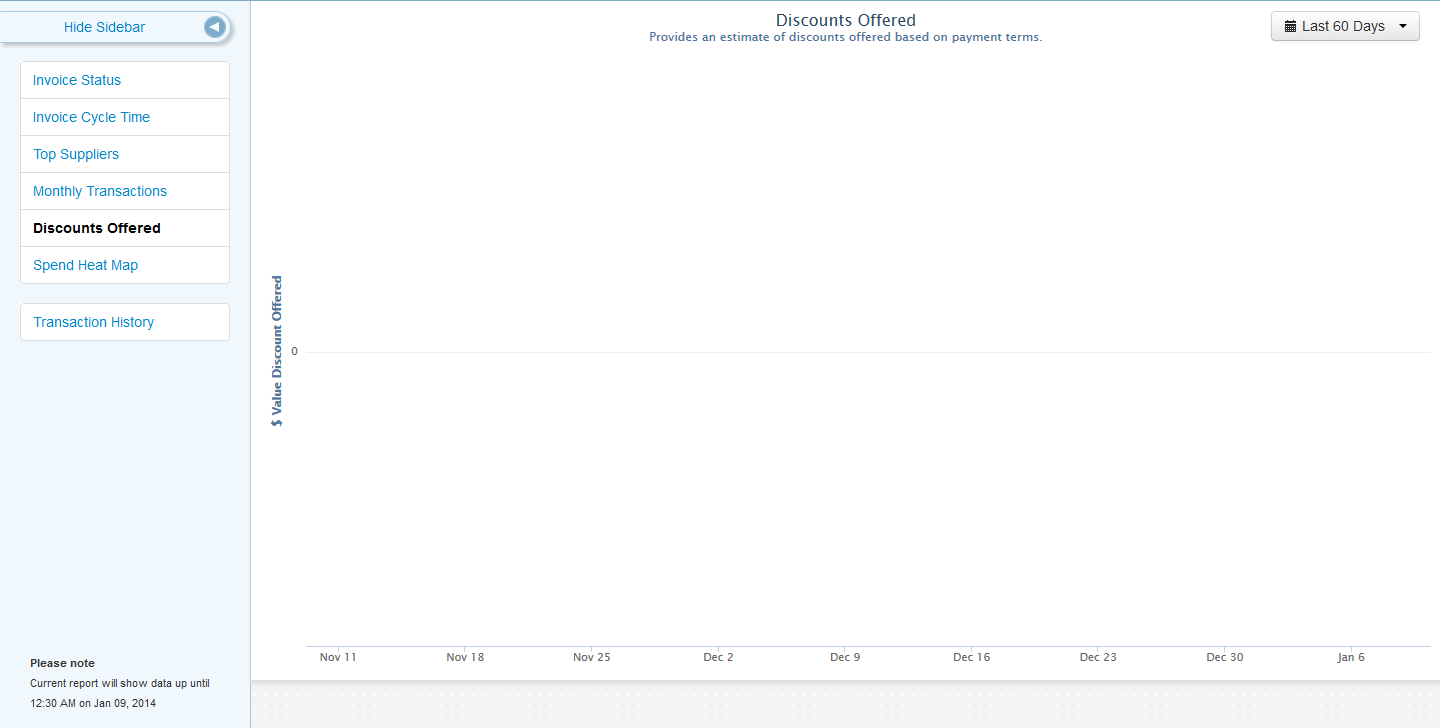
- Discounts Offered: reports the total discounts offered, for a selected time period. For details, refer to Generating a Discounts Offered Report, page 1.
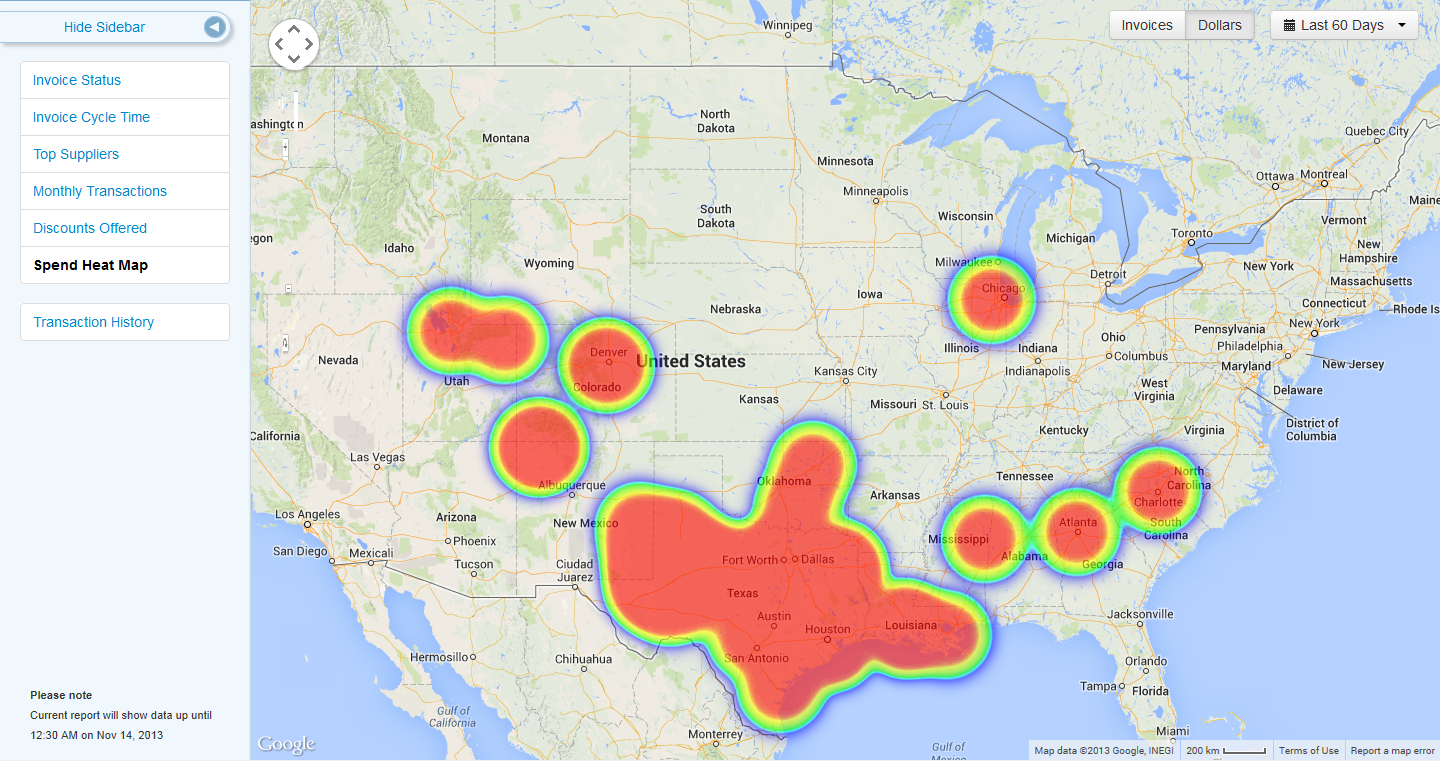
- Spend Heat Map: reports document transaction volume or dollar amount, by remittance location, for a selected period. Data is plotted on a map, providing a visual overview of transactions occurring in various locations. For details, refer to Generating a Spend Heat Map, page 1.
- Transaction History: offers various methods of finding specific documents or their subsets. In addition to defining the report’s date range, you can search for documents by their type and status, or search for a specific document by its number. For details on using Transaction History reports, refer to Transaction History Report, page 1.
Transaction History data is updated approximately every 10 minutes. Data for all of the other reports is updated very night at midnight.
Customizing Report Output
Depending on the report you have selected, you can search specific Trading Partners and toggle between several options that allow you to customize the report output to your needs.
Search
Enter the name of a specific Trading Partner in the Search bar to show data for that Trading Partner and group all other Trading Partner data under the "Others" category.
Invoices/Dollars toggle
Click to toggle the report from displaying by dollar amount or by Invoice count.
Time period drop-down
Select a period, such as a specific month or number of days, to display in the report. The type of time period is dependent on the report you are viewing.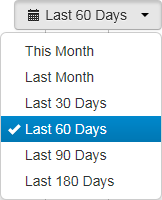
Trading Partner selection
If the legend area of a report lists Trading Partners, click the name of a Trading Partner to show or hide it in the report.
For example:
On the Monthly Transaction report, click the name of a Trading Partner you want to hide from the report.
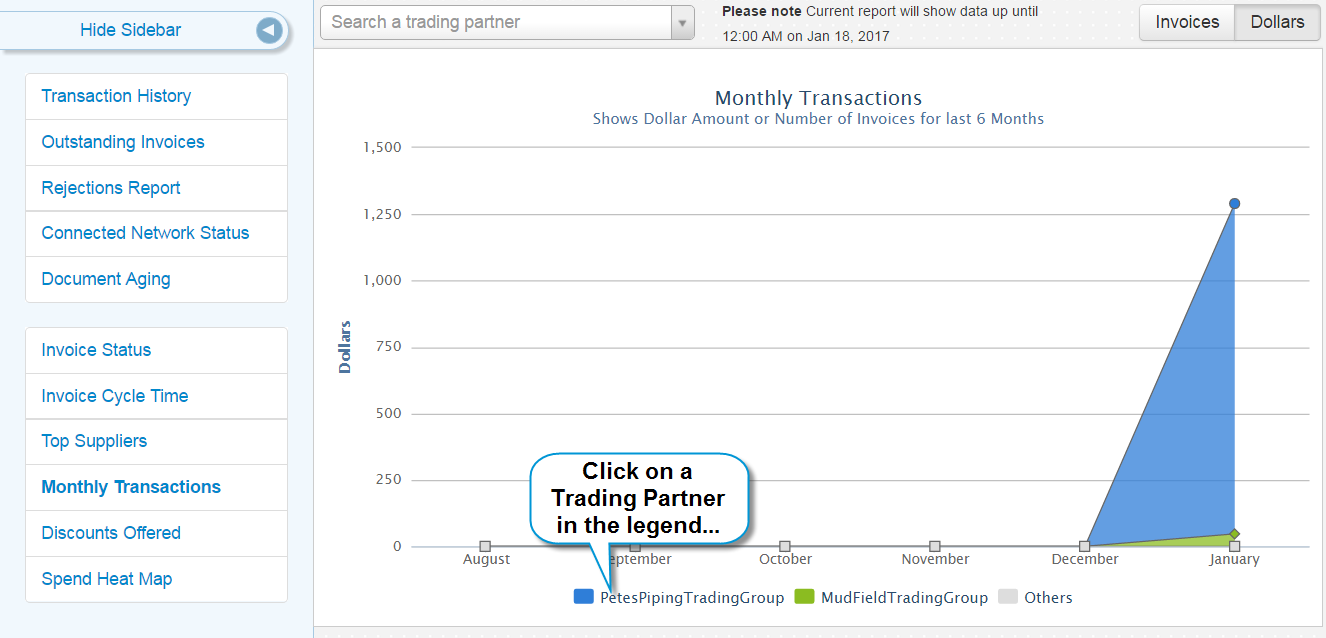
The Trading Partner name is grayed out and the related data is hidden from the report.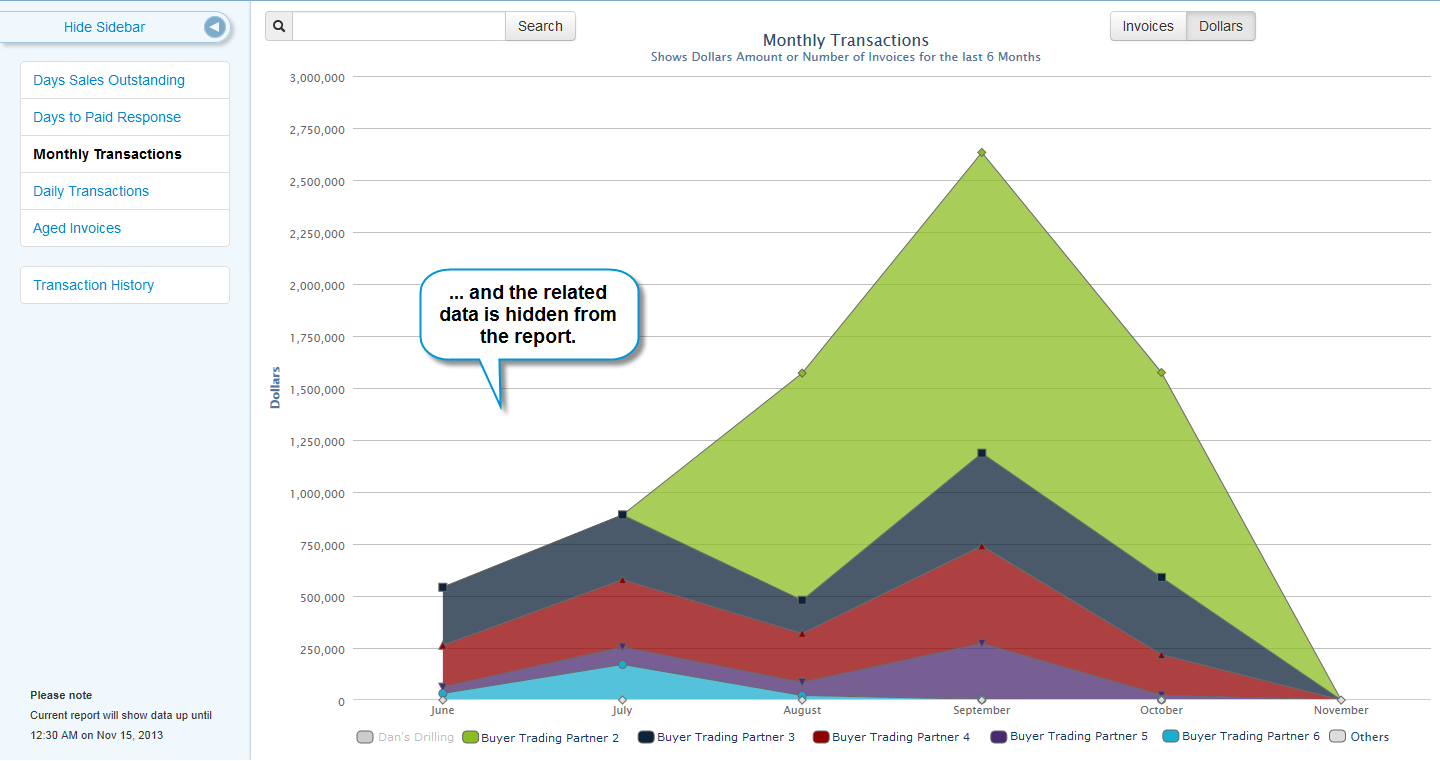
Clicking on the Trading Partner name one more time will display the data in the report again.
Viewing Report Details
Depending on the report you have selected, you can hover your mouse over certain areas to view specific details about the data and click to open more detailed in formation in a Transaction History report.
For example:
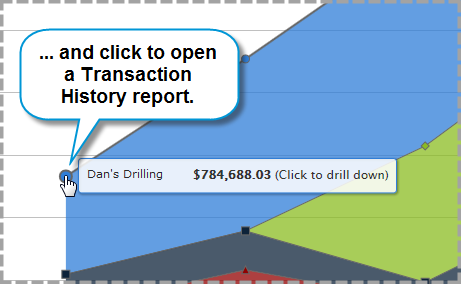
In the Monthly Transactions report, hover your cursor over a data point to view specific details.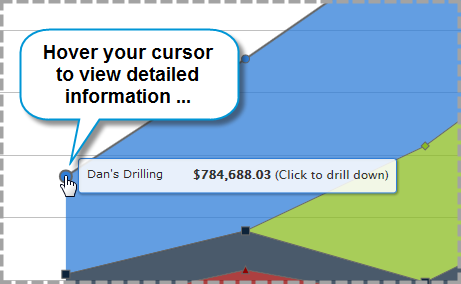
Click the data point to open a Transaction History report that is automatically filtered by the related Trading Partner.