The products and services contained in your Field Tickets can be quickly added as Line Items on your Invoice.
If you are connected to a Buyer that allows submission of Field Tickets, it will appear in your Field Tickets folder in Workbench. 
When creating an Invoice for that Buyer, the Reference Document button  is displayed at the bottom of the Line Items area of the Invoice form, allowing you to add Line Items using the Field Ticket.
To use Field Tickets to add Line Items to your Invoice or Credit Invoice:
- While creating an Invoice, click the Reference Document button at the bottom of the Line Items area of the Invoice form.
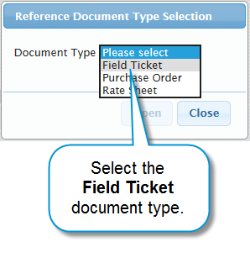
The Reference Document Selection window is displayed. - Select the "Field Ticket"Document Type.
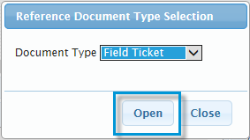
- Click Open.
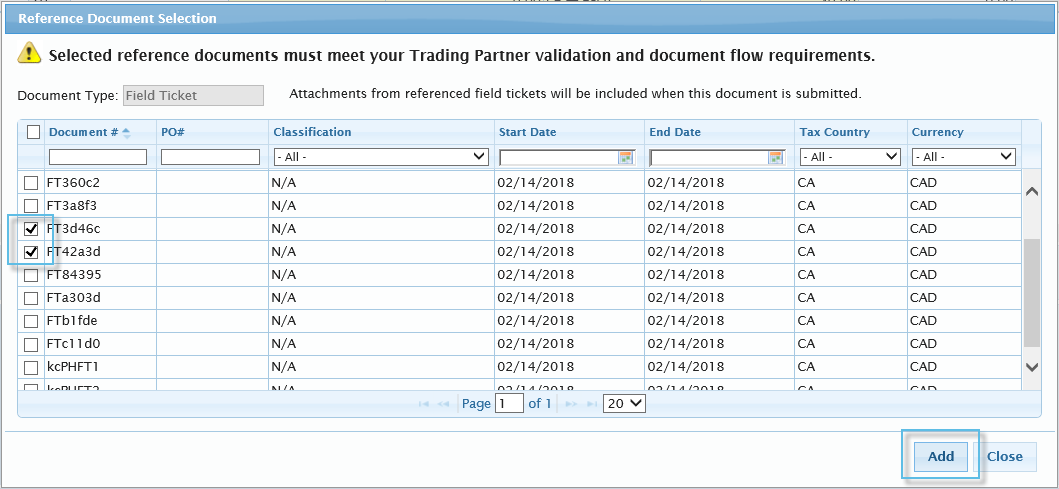
- Check the items you want added to your Invoice, and click Add.
|
NOTE |
For Invoices:
|
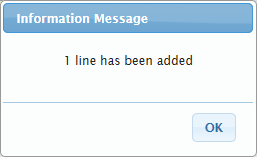
The confirmation dialogue window displays.
|
NOTE |
Field Tickets with an "Approved ERS" or "Return ERS" status will not be displayed in the Field Ticket Reference Document dialog window. For details, refer to Field Ticket Statuses, page 1. |
- Click OK.
The Line Items area of your document form displays the added items.
- Fill out the Line Item fields that were not automatically populated.
- Review and complete the rest of the details for your document and Line Items.
- Submit the document to your Trading Partner.