Cost objects entered on either the Customer Info tab or at the Line Item level are automatically populated to other areas of your document. For details on the Customer Info tab, refer to Customer Info Tab, page 1. Depend on your Trading Partner, you may be required to enter Cost Object Details with or without cost object splitting.
|
note |
The images in the examples below are of the Invoice form, but functions exactly the same for Field Tickets. |
| NOTE | If your Trading Partner has Data Lookup enabled, the magnifying glass icons ( ) will be visible to the right of the applicable Cost Object Details field. These icons will allow you to search for the applicable Cost Object by value (eg. the actual AFE number), or by description. For details, refer to Using Data Lookup to add Cost Objects, page 1. |
To enter Cost Object Details without cost object splitting:
- Click the Cost Object Details button in the Cost Object Type field.

The Cost Object Details window is displayed.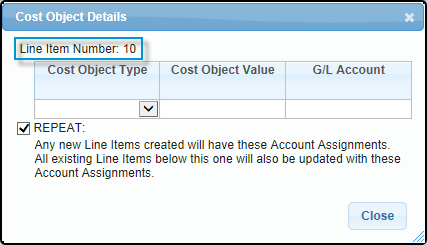
The top section of the window displays the number of the Line Item to which you are adding Cost Object Details.
|
note |
The REPEAT box may be automatically checked for you. For details on the REPEAT box, refer to Repeating Cost Object Details to Multiple Line Items, page 1. |
- For each of the cost objects you require, select a Cost Object Type and enter a related Cost Object Value. You can also enter G/L Account information in this window or in the G/L Account field on the Line Item.
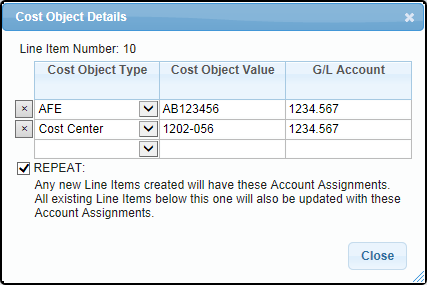
|
note |
Only the cost object types that your Trading Partner uses will be available in the Cost Object Type drop-down. |
- Click Close to apply the Cost Object Details to the Line Item and close the Cost Object Details window.
The cost object fields of the Line Item will be populated with the information you entered. If you entered multiple cost objects, the fields will display the value “Multiple”.
|
note |
You can view or edit the Cost Object Details applied to a Line Item by clicking on the Cost Object Details button in the Cost Object Type field. |
To enter Cost Object Details with cost object splitting:
- Click the Cost Object Details button in the Cost Object Type field.
The Cost Object Details window is displayed.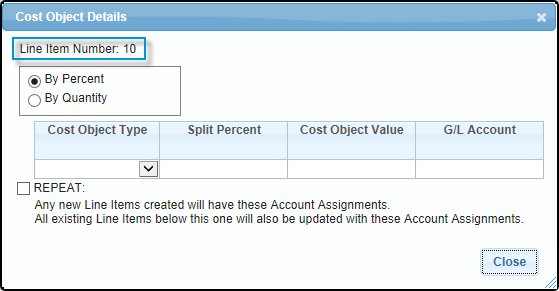
The top section of the window displays the number of the Line Item to which you are adding Cost Object Details. - Choose whether you will be splitting your cost objects By Percent or By Quantity.
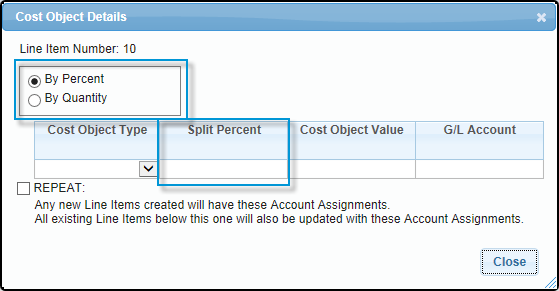
If you select By Quantity, the Split Percent column will be renamed to Split Amount. - For each of the cost objects you require, select a Cost Object Type, then enter a Split Percent or Split Amount, and a related Cost Object Value. You can also enter G/L Account information in this window or in the G/L Account field on the Line Item.
If you are splitting cost objects By Percent, the values you enter in the Split Percent column must equal 100 or you will be unable to submit your document.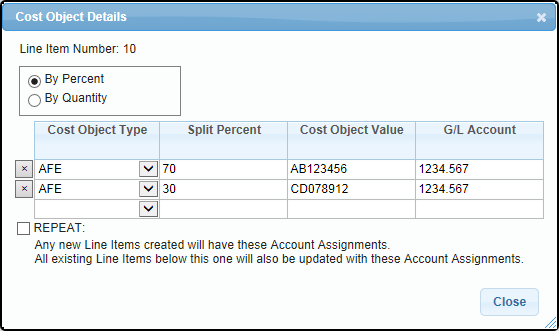
If you are splitting cost objects By Quantity, the values you enter in the Split Amount column must equal the value you entered in the Quantity field of the Line Item or you will be unable to submit your document.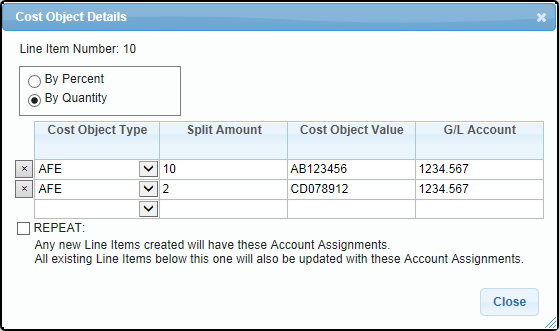
|
note |
Only the cost object types that your Trading Partner uses will be available in the Cost Object Types drop-down. |
- Click Close to apply the Cost Object Details to the Line Item and close the Cost Object Details window.
The cost object fields of the Line Item will be populated with the information you entered. If you entered multiple cost objects, the fields will display the value “Multiple”.
|
note |
You can view or edit the Cost Object Details applied to a Line Item by clicking on the Cost Object Details button in the Cost Object Type field. |
Cost Object Splitting Without The Split Column
If your Trading Partner requires cost object splitting but the Split Percent column is not available in the Cost Object Details window, your items need to be split into separate Line Items to be properly allocated to the correct accounts.
Example:
You need to bill three hours for equipment rental, but each hour needs to go to a different Cost Center and the Split Percent column is not available in the Cost Object Details window.
- Enter the equipment rental as three separate Line Item entries with only one hour each for the Quantity.
- Enter the correct cost object on each Line Item.

Repeating Cost Object Details to Multiple Line Items
You are able to apply cost objects to multiple Line Items using the “REPEAT” check box in the Cost Object Details window. The cost objects are applied to any subsequent, existing Line Items and will automatically apply to new Line Items that you add.
To apply Cost Object Details to multiple Line Items:
- Click the Cost Object Details button in the Cost Object Type field.

- Enter your required information in the Cost Object Details window.
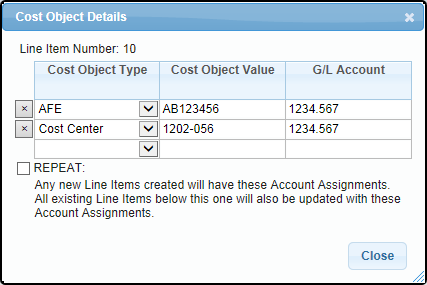
- Check the “REPEAT” box, if it is not already checked.
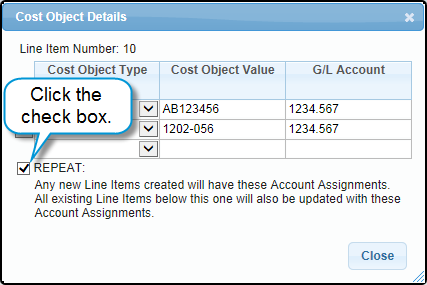
- Click Close to apply the Cost Object Details to subsequent Line Items and close the Cost Object Details window.

- For each of the cost objects you require, select a Cost Object Type and enter a related Cost Object Value. You can also enter G/L Account information in this window or in the G/L Account field on the Line Item.
|
note |
Only the cost object types that your Trading Partner uses will be available in the Cost Object Type drop-down. |
- Click Close to apply the Cost Object Details to the Line Item and close the Cost Object Details window.
The cost object fields of the Line Item will be populated with the information you entered. If you entered multiple cost objects, the fields will display the value “Multiple”.
|
note |
You can view or edit the Cost Object Details applied to a Line Item by clicking on the Cost Object Details button in the Cost Object Type field. |
To enter Cost Object Details with cost object splitting:
- Click the Cost Object Details button in the Cost Object Type field.
The Cost Object Details window is displayed.
The top section of the window displays the number of the Line Item to which you are adding Cost Object Details. - Choose whether you will be splitting your cost objects By Percent or By Quantity.
If you select By Quantity, the Split Percent column will be renamed to Split Amount. - For each of the cost objects you require, select a Cost Object Type, then enter a Split Percent or Split Amount, and a related Cost Object Value. You can also enter G/L Account information in this window or in the G/L Account field on the Line Item.
If you are splitting cost objects By Percent, the values you enter in the Split Percent column must equal 100 or you will be unable to submit your document.
If you are splitting cost objects By Quantity, the values you enter in the Split Amount column must equal the value you entered in the Quantity field of the Line Item or you will be unable to submit your document.
|
note |
Only the cost object types that your Trading Partner uses will be available in the Cost Object Types drop-down. |
- Click Close to apply the Cost Object Details to the Line Item and close the Cost Object Details window.
The cost object fields of the Line Item will be populated with the information you entered. If you entered multiple cost objects, the fields will display the value “Multiple”.
|
note |
You can view or edit the Cost Object Details applied to a Line Item by clicking on the Cost Object Details button in the Cost Object Type field. |
Cost Object Splitting Without The Split Column
If your Trading Partner requires cost object splitting but the Split Percent column is not available in the Cost Object Details window, your items need to be split into separate Line Items to be properly allocated to the correct accounts.
Example:
You need to bill three hours for equipment rental, but each hour needs to go to a different Cost Center and the Split Percent column is not available in the Cost Object Details window.
- Enter the equipment rental as three separate Line Item entries with only one hour each for the Quantity.
- Enter the correct cost object on each Line Item.
Repeating Cost Object Details to Multiple Line Items
You are able to apply cost objects to multiple Line Items using the “REPEAT” check box in the Cost Object Details window. The cost objects are applied to any subsequent, existing Line Items and will automatically apply to new Line Items that you add.
To apply Cost Object Details to multiple Line Items:
- Click the Cost Object Details button in the Cost Object Type field.
- Enter your required information in the Cost Object Details window.
- Check the “REPEAT” box, if it is not already checked.
- Click Close to apply the Cost Object Details to subsequent Line Items and close the Cost Object Details window.